BACK TO PCSTATS + Motherboards
+ Videocards
+ Memory
+ Beginners Guides
News & Advanced Search  Feedback?
[X]   Directory of
Guides & Reviews
The PCstats Forums

Beginners Guides
Weekly Newsletter
Archived Newsletters

+70 MORE Beginner GUIDES....
Poll: Windows 7
Have you Upgraded to Windows 7?
yes, love it!
nope, staying put
yes, but not happy
Total Votes:  809

 
Gigabyte GA-P55A-UD4P Intel P55 Express Motherboard Review
Beginners Guides: 99 Performance Tips for Windows XP
Beginners Guides: 99 Performance Tips for Windows XP - PCSTATS
Marketplace: $/£/€ Price Search
Abstract: PCSTATS covers all the TechTips you need to push a PC from sluggish to quick. This Guide deals with quicker boot times, making your current hardware work faster, and 99 other Tips from PCSTATS that will help you make your computer run better, quicker, and more efficiently!
 Manufacturer:  Category:  Published:  Author: 
  PCSTATS   Beginners Guides   Dec.25.2009   Mike D.  

Video and Graphics Tweaks: Tips 53 - 54

53. Overclocking ATI video cards

Unlike their Nvidia counterparts, ATI does not build an (albeit hidden) overclocking feature into their drivers, so third party software is necessary. For the purposes of this guide we will use the Radlinker utility though there are several other free programs you could also use.

To overclock an ATI video card with Radlinker:

Install the program.

Go to 'start\control panel\display' and select the 'settings' tab then hit 'advanced.

Select the 'Radlinker' tab.

Check the 'enable clock rate change' box. The sliders below are now enabled, allowing you to overclock the memory and processor speed. Click the set button to set the desired rate, then benchmark the card. Watch for visual problems in the benchmarks as you run them, and back off the speed once they are present.
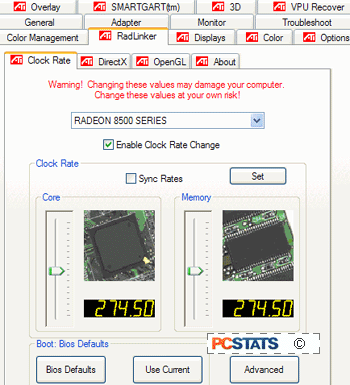
Once you have an acceptable overclock, use the 'use current' button below to apply the changes every time you boot.

54. Overclocking Nvidia Video cards

Nvidia's video driver package has an overclocking component to it, but it is disabled by default and can only be re-enabled by editing the registry manually or with a file.

To activate overclocking in Nvidia cards:

Open REGEDIT

Navigate to 'HKEY_LOCAL_MACHINE\Software\NVIDIA Corporation\Global\NVTweak'

Create a new DWORD value called 'Coolbits' and give it a value of '3'

Reboot.

Known as 'coolbits' due to the name of the registry entry that must be added, this feature creates a 'clock frequency' page in the Nvidia display software.
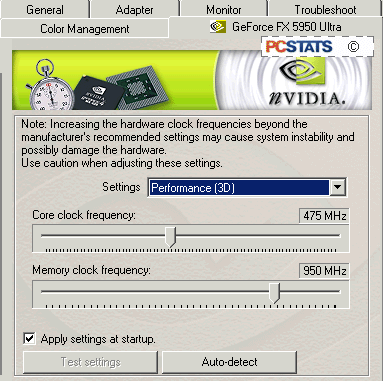
From here you can adjust the GPU and memory clock speeds. Before applying the settings you must allow the drivers to test them. Note, this is not a guarantee of successful overclocking, just a test for basic stability. You can also use the 'auto detect' button, which will attempt to determine the recommended level of overclocking. Use of this feature generally results in slightly conservative settings, but it makes a good reference point. Changes will be applied automatically upon pressing 'ok.'

One thing that can make overclocking complicated on newer Nvidia graphics cards is the fact that the graphics processors have a thermal safeguard and will actually slow themselves down to avoid damage from excessive heat. Overclocking the card of course produces more heat, and eventually you will reach a point where the safeguard kicks in and your benchmark scores will drop perceptibly no matter how much more you overclock the card.

Fair enough, but the trouble is, even if you crank the card back down to more conservative settings once you have reached this point, chances are the safeguard will still be in effect until the card gets a proper chance to cool down a bit (by rebooting, for example.).

This can make benchmarking for best performance more complicated than it needs to be. Best practice then is to increase by increments and make note of when your benchmark scores begin to drop. In this way you get a good idea of the maximum safe level of overclocking for the card.

Once you have found an optimal level, use the 'apply settings at startup' checkbox so you do not have to reenter the settings after a reboot.

< Previous Page © 2010 PCSTATS.com
Please respect the time and effort that went into creating each PCSTATS Beginners Guide, do not illegally copy. Thank you.
Next Page >

Toss Some Change into The Tip Jar
For less than the cost of a latté you can let the hardworking staff who write and maintain the GUIDES at PCSTATS know that we've helped you out of a jam, or dished out a bit of great tech advice. Toss in $3 bucks, or whatever spare change you like.
 Pg 1.  Beginners Guides: 99 Performance Tips for Windows XP
 Pg 2.  Preparing your system: Tips 1 - 3
 Pg 3.  Preparing your system: Tips 4 - 5
 Pg 4.  Preparing your system: Tips 6 - 8
 Pg 5.  BIOS Tweaks: Tips 9 - 11
 Pg 6.  BIOS Tweaks: Tips 12 - 14
 Pg 7.  Overclocking Memory / CPU: Tips 15 -16
 Pg 8.  WinXP Software and Registry Tweaks: Tips 17 - 20
 Pg 9.  WinXP Software and Registry Tweaks: Tips 21 - 22
 Pg 10.  WinXP Software and Registry Tweaks: Tips 23 - 25
 Pg 11.  WinXP Software and Registry Tweaks: Tips 26 - 28
 Pg 12.  WinXP Software and Registry Tweaks: Tips 29 - 31
 Pg 13.  WinXP Software and Registry Tweaks: Tips 32 - 35
 Pg 14.  WinXP Software and Registry Tweaks: Tips 36 - 40
 Pg 15.  WinXP Software and Registry Tweaks: Tips 41 - 43
 Pg 16.  WinXP Software and Registry Tweaks: Tips 44 - 45
 Pg 17.  WinXP Software and Registry Tweaks: Tips 46 - 48
 Pg 18.  Video and Graphics Tweaks: Tips 49 - 52
 Pg 19.  — Video and Graphics Tweaks: Tips 53 - 54
 Pg 20.  Video and Graphics Tweaks: Tips 55 - 57
 Pg 21.  Network and Internet Speed Tweaks: Tips 58 - 61
 Pg 22.  Network and Internet Speed Tweaks: Tips 62 - 63
 Pg 23.  Network and Internet Speed Tweaks: Tips 64 - 66
 Pg 24.  WinXP Interface Tweaks and Shortcuts: Tips 67 - 69
 Pg 25.  WinXP Interface Tweaks and Shortcuts: Tips 70 - 73
 Pg 26.  WinXP Interface Tweaks and Shortcuts: Tips 74 - 77
 Pg 27.  WinXP Interface Tweaks and Shortcuts: Tips 78 - 81
 Pg 28.  Improving Windows XP boot speed: Tips 82 - 84
 Pg 29.  Improving Windows XP boot speed: Tips 85 - 88
 Pg 30.  Improving Windows XP boot speed: Tips 89 - 91
 Pg 31.  Improving Windows XP boot speed: Tips 92 - 94
 Pg 32.  Increasing XP shutdown speed: Tips 95 - 99
SEARCH PCSTATS NEW - TRY IT OUT!
Use the power of Google to search all of PCSTATS and the PCSTATS Forums. Tell us what you think of this new feature - FEEDBACK?

   09.02.10 | 4:54P
Hardware Sections 
· Beginners Guides
· Cases and Access.
· CD-ROMs
· Chipsets
· Computers / SFF PCs
· Cooling - Heatsinks
· CPU / Processors
· Digital Cameras
· Hard Drives
· Home Theatre
· Memory
· MP3 Players
· Monitors
· Motherboards
· Mouse Pads
· Networking
· Notebooks
· PCs and SFF PCs
· Peripherals
· Powersupply
· Printers
· Servers
· Software / OS
· Videocards
- - -
· Editorials
Industry PR 
» GIGABYTE Unleashes First UD7 Motherboard

» Seagate Ships 2TB ATA 6GB/s Hard Drive

» Corsair Obsidian Series 800D high-performance chassis


google
 
PCstats Network Features Information About Us Rydium Network
FrostyTech
TransmetaZone
BeginnersPC
RamFinder
ShoppingList Assistance
PCstats.com Newsletter
Tech Glossary
Technology WebSite Listings
About Us
Employment / Internships
Privacy Policy
PermaLink News
Archived News
Submit News (Review RSS Feed)
Site Map
PCstats Wallpaper
Suite66 Advertising Agency
Advertising

How's Our Driving?
© Copyright 1999-2010 www.pcstats.com All rights reserved. Privacy policy and Terms of Use.