BACK TO PCSTATS + Motherboards
+ Videocards
+ Memory
+ Beginners Guides
News & Advanced Search  Feedback?
[X]   Directory of
Guides & Reviews
The PCstats Forums

Beginners Guides
Weekly Newsletter
Archived Newsletters

+70 MORE Beginner GUIDES....
Poll: Windows 7
Have you Upgraded to Windows 7?
yes, love it!
nope, staying put
yes, but not happy
Total Votes:  809

 
Gigabyte GA-P55A-UD4P Intel P55 Express Motherboard Review
Beginners Guides: 99 Performance Tips for Windows XP
Beginners Guides: 99 Performance Tips for Windows XP - PCSTATS
Marketplace: $/£/€ Price Search
Abstract: PCSTATS covers all the TechTips you need to push a PC from sluggish to quick. This Guide deals with quicker boot times, making your current hardware work faster, and 99 other Tips from PCSTATS that will help you make your computer run better, quicker, and more efficiently!
 Manufacturer:  Category:  Published:  Author: 
  PCSTATS   Beginners Guides   Dec.25.2009   Mike D.  

WinXP Software and Registry Tweaks: Tips 21 - 22

21. Disable performance counters

Like Windows 2000, Windows XP has a performance monitor utility (found in administrative tools) which can track several areas of your PC's performance. Everything from CPU use to hard drive access can be tracked and graphed. The information for this utility comes from several performance counter services which run behind the scenes, gathering data for the monitor.

If you have no use for this information, it's a good idea to disable the counters, since they take up system resources. Unfortunately, this is rather hard to do without the use of additional software. Fortunately, Microsoft has made the necessary software freely available on their website.

The Extensible Performance Counter List utility can be used to permanently disable these performance counters.

First download and install the utility, then run the Exctrlst.exe utility, found in 'c:\program files\resource kit\'
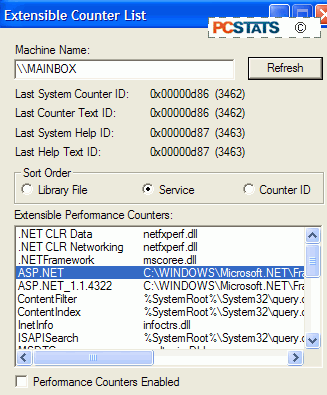
Select each line in the 'Extensible performance counters' window and clear the 'performance counters enabled' button below. You must do this separately for each counter. When done, just exit the utility.

Now if you load the performance monitor, you will see that it has no information available to it.

22. Move the page file from system drive

The page file is the area of a hard drive which Windows reserves for use as virtual memory when there is more data than can be stored in the actual physical memory of the system.

Page file access is extremely slow as compared to standard memory, since the hard disk, as a mechanical device, is slower to read and write information than the purely electronic memory. There are still some ways to optimize your page file use so it is a bit less of a burden on your system, however.

One of the best of these methods, provided you have two physical hard drives, is to move the page file off the disk which hosts the Windows system files. This ensures that Windows is not constantly accessing the disk for the system files as well as the page file.

To do this in Windows XP:

Right click on 'my computer' and select 'properties.'

Select the 'advanced' tab.

Under 'performance' choose the 'settings' button.

Select the 'advanced' tab again and under 'virtual memory' select 'change.'
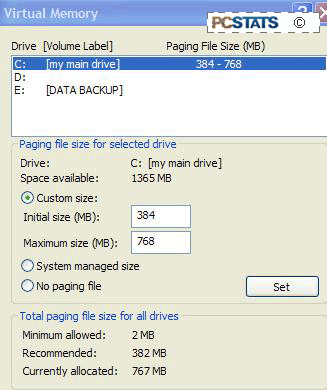
The virtual memory window allows you to select and change the allocation of hard disk space to be used as virtual memory for your system. For best performance; if you have two physical hard disks of roughly equivalent speed, remove the page file from your system disk (c:) and place it on the other drive.

< Previous Page © 2010 PCSTATS.com
Please respect the time and effort that went into creating each PCSTATS Beginners Guide, do not illegally copy. Thank you.
Next Page >

Toss Some Change into The Tip Jar
For less than the cost of a latté you can let the hardworking staff who write and maintain the GUIDES at PCSTATS know that we've helped you out of a jam, or dished out a bit of great tech advice. Toss in $3 bucks, or whatever spare change you like.
 Pg 1.  Beginners Guides: 99 Performance Tips for Windows XP
 Pg 2.  Preparing your system: Tips 1 - 3
 Pg 3.  Preparing your system: Tips 4 - 5
 Pg 4.  Preparing your system: Tips 6 - 8
 Pg 5.  BIOS Tweaks: Tips 9 - 11
 Pg 6.  BIOS Tweaks: Tips 12 - 14
 Pg 7.  Overclocking Memory / CPU: Tips 15 -16
 Pg 8.  WinXP Software and Registry Tweaks: Tips 17 - 20
 Pg 9.  — WinXP Software and Registry Tweaks: Tips 21 - 22
 Pg 10.  WinXP Software and Registry Tweaks: Tips 23 - 25
 Pg 11.  WinXP Software and Registry Tweaks: Tips 26 - 28
 Pg 12.  WinXP Software and Registry Tweaks: Tips 29 - 31
 Pg 13.  WinXP Software and Registry Tweaks: Tips 32 - 35
 Pg 14.  WinXP Software and Registry Tweaks: Tips 36 - 40
 Pg 15.  WinXP Software and Registry Tweaks: Tips 41 - 43
 Pg 16.  WinXP Software and Registry Tweaks: Tips 44 - 45
 Pg 17.  WinXP Software and Registry Tweaks: Tips 46 - 48
 Pg 18.  Video and Graphics Tweaks: Tips 49 - 52
 Pg 19.  Video and Graphics Tweaks: Tips 53 - 54
 Pg 20.  Video and Graphics Tweaks: Tips 55 - 57
 Pg 21.  Network and Internet Speed Tweaks: Tips 58 - 61
 Pg 22.  Network and Internet Speed Tweaks: Tips 62 - 63
 Pg 23.  Network and Internet Speed Tweaks: Tips 64 - 66
 Pg 24.  WinXP Interface Tweaks and Shortcuts: Tips 67 - 69
 Pg 25.  WinXP Interface Tweaks and Shortcuts: Tips 70 - 73
 Pg 26.  WinXP Interface Tweaks and Shortcuts: Tips 74 - 77
 Pg 27.  WinXP Interface Tweaks and Shortcuts: Tips 78 - 81
 Pg 28.  Improving Windows XP boot speed: Tips 82 - 84
 Pg 29.  Improving Windows XP boot speed: Tips 85 - 88
 Pg 30.  Improving Windows XP boot speed: Tips 89 - 91
 Pg 31.  Improving Windows XP boot speed: Tips 92 - 94
 Pg 32.  Increasing XP shutdown speed: Tips 95 - 99
SEARCH PCSTATS NEW - TRY IT OUT!
Use the power of Google to search all of PCSTATS and the PCSTATS Forums. Tell us what you think of this new feature - FEEDBACK?

   09.02.10 | 5:25P
Hardware Sections 
· Beginners Guides
· Cases and Access.
· CD-ROMs
· Chipsets
· Computers / SFF PCs
· Cooling - Heatsinks
· CPU / Processors
· Digital Cameras
· Hard Drives
· Home Theatre
· Memory
· MP3 Players
· Monitors
· Motherboards
· Mouse Pads
· Networking
· Notebooks
· PCs and SFF PCs
· Peripherals
· Powersupply
· Printers
· Servers
· Software / OS
· Videocards
- - -
· Editorials
Industry PR 
» GIGABYTE Unleashes First UD7 Motherboard

» Seagate Ships 2TB ATA 6GB/s Hard Drive

» Corsair Obsidian Series 800D high-performance chassis


google
 
PCstats Network Features Information About Us Rydium Network
FrostyTech
TransmetaZone
BeginnersPC
RamFinder
ShoppingList Assistance
PCstats.com Newsletter
Tech Glossary
Technology WebSite Listings
About Us
Employment / Internships
Privacy Policy
PermaLink News
Archived News
Submit News (Review RSS Feed)
Site Map
PCstats Wallpaper
Suite66 Advertising Agency
Advertising

How's Our Driving?
© Copyright 1999-2010 www.pcstats.com All rights reserved. Privacy policy and Terms of Use.