Many manufacturers do offer
software to flash the BIOS of your motherboard from the Windows environment,
something that used to be unheard of. This support tends to be for only the most
recent of motherboards, though, and is extremely easy to use (when it works).
For these reasons, we have decided to detail the process of upgrading your BIOS
through the DOS environment. This procedure is slightly more complicated, but it
works the same way for every motherboard made within the past decade or so.
To carry out this procedure,
you will need a working 1.44MB floppy drive (or CD burner, though floppy is
easier).
First you need to create a
clean DOS boot disk. This disk will boot your computer to the DOS prompt with no
additional software or drivers loaded. This is essential for the BIOS updating
process. If you have an old Windows95 or Windows98 boot disk sitting around, you
can use that, if not then the easiest way to create this disk is to go to
BootDisk.com and download the "DR. DOS disk for BIOS flashing" file. You
can find this item straight off the main page.
The download file is actually
a disk image, and once it is completed, simply double click the file name and
insert a blank floppy disk into the A:/ drive and it will create a boot disk for
you right then and there. If you do not have a floppy drive, download the
.ISO
image and burn it onto a CD to create a DOS
clean boot disk.
Once you have created your
boot disk, locate the BIOS update file that you downloaded from your motherboard
manufacturer. Assuming the manufacturer has bundled the BIOS file and BIOS
update software together in an archive (.zip), there should be at least two
files there. The first is the data file (which contains the new BIOS
information) and the second will be a DOS executable file (.exe) which will
write the BIOS info onto the CMOS chip.
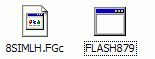
Depending on the manufacturer
and the motherboard, the names of these files will vary. Below are several
examples from various motherboard manufacturers to give you an idea of what you
are looking for. If you only have a single data file and no executable file, you
will need to download the BIOS flashing utility (generally 'flash879' 'awdflash'
or 'aflash') from the motherboard manufacturer's website. Again, look in the
support or downloads section.
Again, depending on the
manufacturer, there may be a DOS batch file which you can run to automate the
process, or a readme file which contains the manufacturer's specific
instructions for flashing the BIOS. Both of these may make the process easier
for you, but the method below assumes that neither is present.
Copy the two files (and a
batch file, if present) onto a separate floppy disk and note down all the
filenames on the disk on a piece of paper. Now, with the floppy disk still in
the A:/ drive, reboot your system using the boot floppy you just created. As
long as your PC is set to boot from the floppy before going to the CDROM or hard
drive, the computer will access it, and boot into DOS. If this doesn't happen,
reboot your PC, and make sure the BIOS is set to access the A:/ drive first.
This setting is generally configured under "device boot order," or a similar
name.









 RSS Newsletter