BACK TO PCSTATS + Motherboards
+ Videocards
+ Memory
+ Beginners Guides
News & Advanced Search  Feedback?
[X]   Directory of
Guides & Reviews
The PCstats Forums

Beginners Guides
Weekly Newsletter
Archived Newsletters

+70 MORE Beginner GUIDES....
Poll: Windows 7
Have you Upgraded to Windows 7?
yes, love it!
nope, staying put
yes, but not happy
Total Votes:  804

 
 [NEW!] 
Gigabyte GA-P55A-UD4P Intel P55 Express Motherboard Review
Beginners Guides: Cloning WindowsXP
Beginners Guides: Cloning WindowsXP - PCSTATS
Marketplace: $/£/€ Price Search
Abstract: A common problem is how to clone your installed WindowsXP and move it to a new hard drive on the same computer. Upgrading your OS hard drive can be a real pain, but we'll walk you through an easy process to simplify your life, so you can get back to work.
 Manufacturer:  Category:  Published:  Author: 
  PCstats   Beginners Guides   Dec.23.2008   Mike D.  

Part2: Using HDClone

This set of instructions assumes that you already have a second hard drive correctly installed in your computer. For instructions on how to do this, see the section earlier in this guide about installing a hard drive in the same computer, or a new computer, as appropriate.

After downloading HDclone, extract the 'Hdclone20fe' compressed file to a directory.

To run Hdclone, you need to create either a bootable floppy disk or a bootable CD. A floppy is probably the easiest option, so let's cover that first.

Run the 'install' executable from the directory you just created.

Insert a blank formatted 1.44 floppy disk into your drive and hit the 'start installation' button. This will create a blank floppy with the required files.

To create a bootable CD, use a CD burning program such as Nero. Select 'CD-ROM (boot)' as the type of disk you wish to create (note that this command will differ in other programs like Roxio, but you are looking for the option to make a bootable CD). Use the 'hdclone.img' file from the Hdclone directory to create the CD.

Boot your system from the floppy or CD you have created.
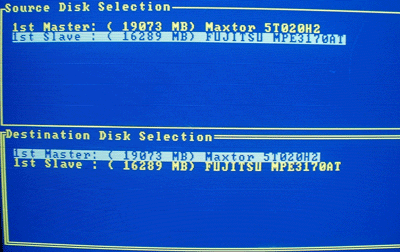
Select the drive you wish to use as the source, then the drive you wish to use as the target.

Please pay attention and make certain you select the right hard drive! If you don't you may erase all of your information. If the target drive has data on it, you will be warned and required to enter a key combination before cloning can start. Begin the process. This will take a considerable amount of time, so find something else to do.

Once the process has completed, exit Hdclone.

Your new drive will now contain an exact copy of your old drive, and a portion of unpartitioned space making up the difference between the sizes of the two drives. This can be partitioned and formatted using disk manager (right click 'my computer' and choose 'manage' then 'disk management') or appended to the rest of the drive using a program like Partition Magic.

< Previous Page © 2010 PCSTATS.com
Please respect the time and effort that went into creating each PCSTATS Beginners Guide, do not illegally copy. Thank you.
Next Page >

Toss Some Change into The Tip Jar
For less than the cost of a latté you can let the hardworking staff who write and maintain the GUIDES at PCSTATS know that we've helped you out of a jam, or dished out a bit of great tech advice. Toss in $3 bucks, or whatever spare change you like.
 Pg 1.  Beginners Guides: Cloning WindowsXP
 Pg 2.  Disk Cloning Software
 Pg 3.  Part 1A: Installing a new drive for cloning
 Pg 4.  Part 1A: Before and after the Cloning
 Pg 5.  Part 1B: Cloning for a new computer
 Pg 6.  Part 1B: Installing Drivers After Cloning
 Pg 7.  Part2: Using Norton Ghost
 Pg 8.  — Part2: Using HDClone
 Pg 9.  Part2: Using Ranish Partition manager
SEARCH PCSTATS NEW - TRY IT OUT!
Use the power of Google to search all of PCSTATS and the PCSTATS Forums. Tell us what you think of this new feature - FEEDBACK?

   09.02.10 | 11:56A
Hardware Sections 
· Beginners Guides
· Cases and Access.
· CD-ROMs
· Chipsets
· Computers / SFF PCs
· Cooling - Heatsinks
· CPU / Processors
· Digital Cameras
· Hard Drives
· Home Theatre
· Memory
· MP3 Players
· Monitors
· Motherboards
· Mouse Pads
· Networking
· Notebooks
· PCs and SFF PCs
· Peripherals
· Powersupply
· Printers
· Servers
· Software / OS
· Videocards
- - -
· Editorials
Industry PR 
» GIGABYTE Unleashes First UD7 Motherboard

» Seagate Ships 2TB ATA 6GB/s Hard Drive

» Corsair Obsidian Series 800D high-performance chassis


google
 
PCstats Network Features Information About Us Rydium Network
FrostyTech
TransmetaZone
BeginnersPC
RamFinder
ShoppingList Assistance
PCstats.com Newsletter
Tech Glossary
Technology WebSite Listings
About Us
Employment / Internships
Privacy Policy
PermaLink News
Archived News
Submit News (Review RSS Feed)
Site Map
PCstats Wallpaper
Suite66 Advertising Agency
Advertising

How's Our Driving?
© Copyright 1999-2010 www.pcstats.com All rights reserved. Privacy policy and Terms of Use.